Use TabHangar with confidence.

A practical guide to snapshots, Quick Access, tab organization, and every Pro control.

First five minutes

Set up your safety net.

Install the extension, choose how files are handled, then save your first browser session.

Requires Chrome 122 or later for persistent folder access. Choose “Allow on every visit” when Chrome offers it.

  1. Open TabHangar

    Pin TabHangar from Chrome's Extensions menu, then click its icon to open the popup.

  2. Complete Initialization

    Choose a Snapshot folder and, if wanted, a Backup folder. These permissions keep file access under your control.

  3. Save the first snapshot

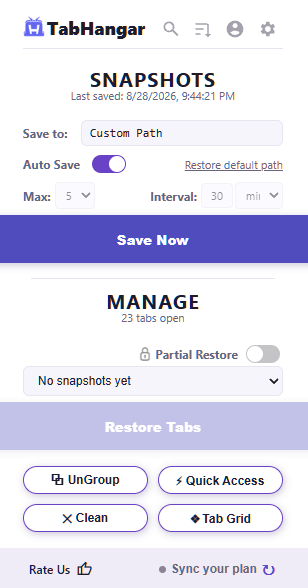
    Select Save Now in the popup. Your current windows, pinned tabs, and open pages are recorded together.

TabHangar popup with Custom Path, Auto Save, Save Now, and restore controls.

Everyday essentials

Free Features

The free plan includes the full everyday workflow, AI classification, and AI Search.

Automatic snapshots and full restore

TabHangar saves every 30 minutes and keeps the latest 5 snapshots. Use Save Now whenever you want an immediate checkpoint.

How to useChoose a snapshot in the popup, select Restore Tabs, then confirm whether Batch Loading should open tabs in smaller groups.

Sort, clean, and search

Organize the current window or all windows with basic sorting, remove duplicates, and search open tabs and browser history. On protected browser pages, Search automatically opens in the extension popup.

How to useOpen the popup and use Clean, Sort Tabs, or Search Tabs. Review the selected scope before applying a sort.
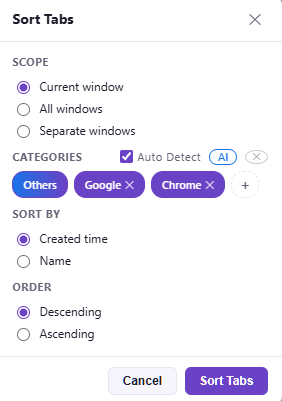
Sort Tabs dialog with Current window scope and basic sorting controls.

Quick Access — up to 2 folders

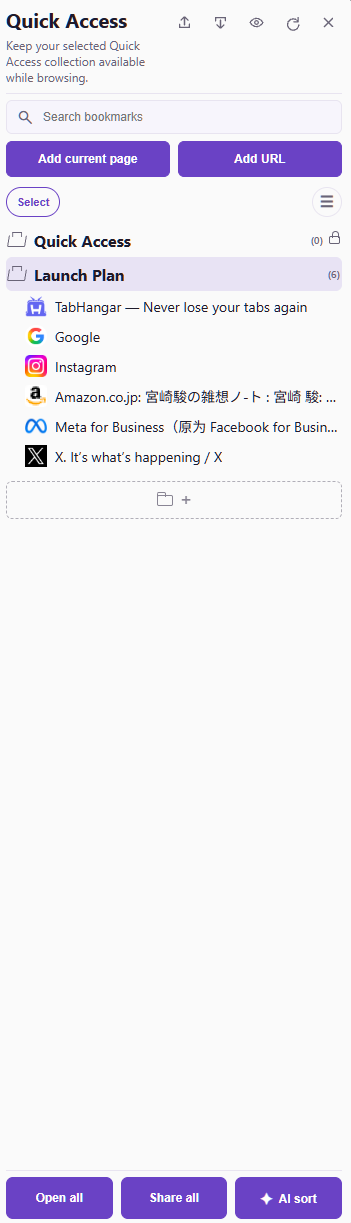
Keep recurring links in a drawer that opens over regular web pages. The Free folder allowance counts collections and sub collections together.

How to useSelect Quick Access in the popup or press Ctrl/Command + Shift + Q. Add, rename, lock, color, sort, import, export, or share links from the drawer.

Free includes up to 2 folders. Existing links remain available if you reach the limit.

Local Quick Access Auto Save runs every 30 minutes and keeps the newest 5 timestamped backups. Sync Mode can run at the same time.

Quick Access drawer with two folders, search, add controls, and saved links.

Share Quick Access to your phone

Send your complete Quick Access to any modern mobile browser without installing an app. TabHangar encrypts it locally, uploads only the encrypted data, and creates a QR code for a temporary link.

How to useIn Quick Access, choose Share, then Publish to phone. Accept the temporary upload notice, create the QR code, and scan it with your phone. Tap Open browser; if the scanner stays open, copy the address shown and paste it into a browser. Then select Save to this browser and add the page to that browser's bookmarks or favorites.

The transfer uses AES-256-GCM. Its decryption key stays after # in the link and is never sent to the server. Protect the complete link: anyone who has it can open the transfer before it expires.

This is a Free, manual transfer—not automatic sync. Each upload requires consent, is limited to 10 MB, and is deleted from the server after 2 hours or sooner if you revoke it. A copy saved in the mobile browser remains there until that browser's site data is cleared.

AI classification

Use your chosen compatible AI model to turn open tabs into topic-based groups. AI classification is a Free feature.

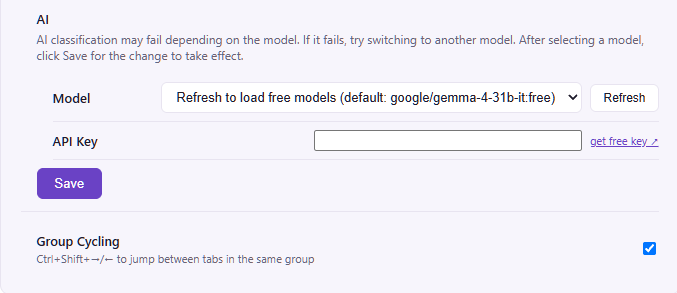
How to useOpen Settings, select a model, add its API key, and Save. Then open Sort Tabs and select AI Classify.

Previous and next tab in a group

Move directly to the previous or next tab inside the current Chrome tab group. Both shortcuts are Free and stay active once assigned, with no separate feature switch.

How to useAssign both commands in Settings → Keyboard Shortcuts, then use them while the active tab belongs to a group.

Settings showing AI model and API key configuration.

AI Search for saved links

Describe what you remember in natural language. AI Search matches titles, folders, and creation dates without sending the saved URLs. AI Search is a Free feature.

How to useOpen Quick Access, select AI Search inside the search box, enter a request, then open, rename, or delete a result.

Batch Loading, import, export, and backup

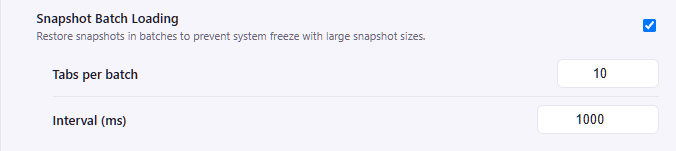
Restore large sessions in batches, move snapshot data with JSON files, and create scheduled full backups in a folder you authorize.

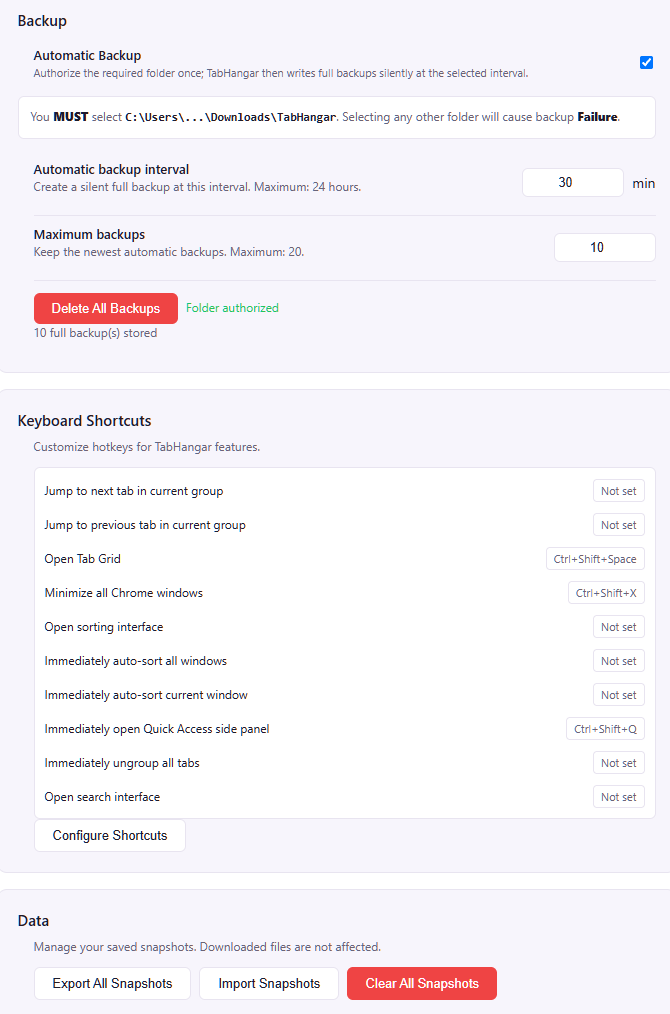
How to useConfigure Batch Loading and Automatic Backup in Settings. Use the Data section to export, import, or clear snapshots.

Timed backups are queued safely inside TabHangar if folder access is interrupted, then written automatically when access returns. Settings also provides a manual recovery button.

Settings showing Snapshot Batch Loading enabled with batch size and interval.
Settings showing Automatic Backup controls, required folder warning, and backup status.
Settings Data section with export, import, and clear Snapshot actions.

Free Memory and Restart

Free Memory immediately asks Chrome to unload every background tab while keeping each tab in place. The result identifies tabs that were released, already released, or protected by Chrome. Restart rebuilds the regular windows in your current Chrome profile for a deeper refresh.

How to useOpen Clean and select Free Memory for a silent one-click release. Select Restart to choose standard or Batch Loading before the windows are rebuilt.

Active tabs cannot be discarded. Window restart does not quit Chrome itself, restart the browser process, affect Incognito windows, or touch another Chrome profile.

More room and precision

Pro Features

Pro expands snapshot control, adds precision restore and full-screen organization, removes the Quick Access folder limit, and unlocks cross-device Sync Mode.

The Pro centerpiece

Tab Grid

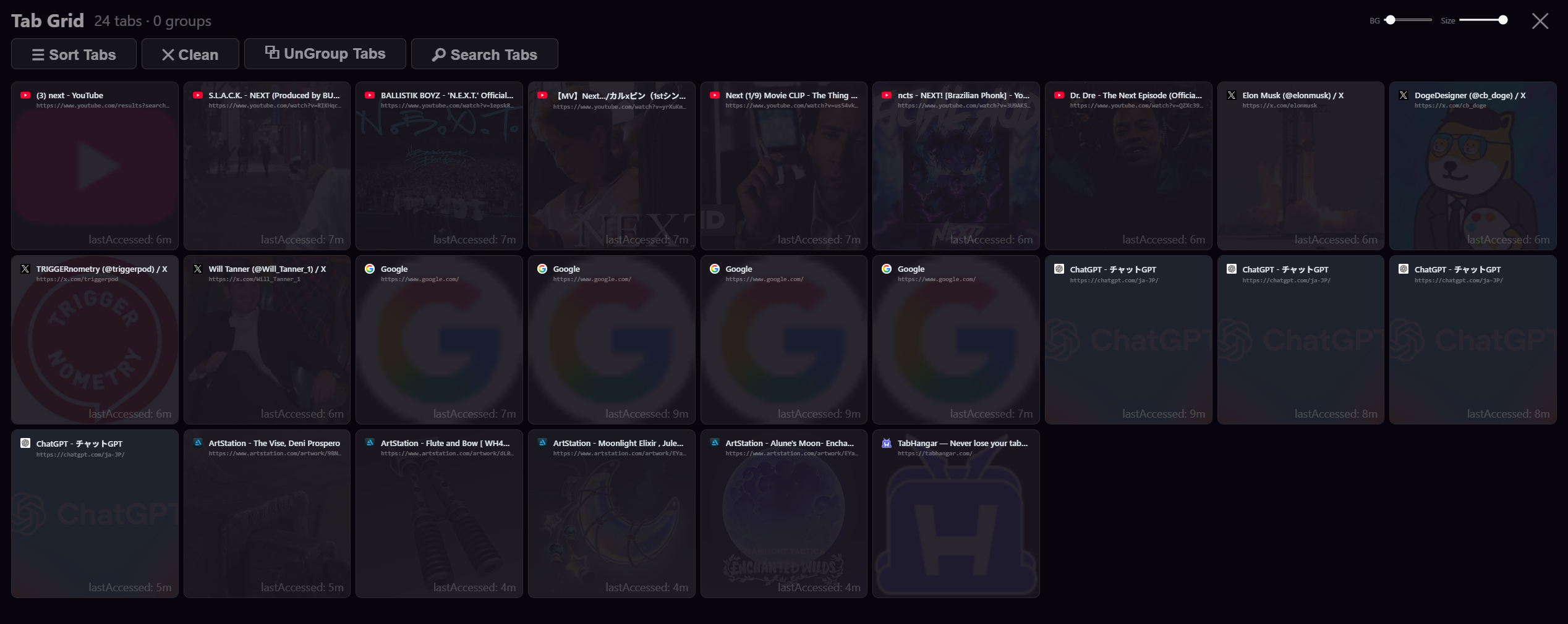
See tabs and Chrome tab groups in a full-screen workspace with search, sort, clean, and group actions.

How to useSelect Tab Grid in the popup or use its configured keyboard shortcut. Select any tab card to switch to it.

Tab Grid displaying open tabs as a full-screen visual workspace with sorting, cleaning, grouping, and search controls.

Custom schedule and 1000 snapshots

Choose your own automatic save interval and retain up to 1000 snapshots for deeper history.

How to useIn the popup, set the interval value and unit, then choose the maximum snapshot history.

Partial Restore

Recover only the categories or individual tabs you need instead of reopening the entire snapshot.

How to useEnable Partial Restore in the popup, choose a snapshot, then select specific categories or tabs on the Restore page.

Separate windows sorting

Apply sorting within each Chrome window so different workspaces keep their own boundaries.

How to useOpen Sort Tabs, choose Separate Windows as the scope, select categories and order, then apply.

Unlimited Quick Access folders

Create as many collections and sub collections as your projects require, with no folder allowance.

How to useUse the dashed folder button in the Quick Access drawer to add collections, then organize links with drag and drop.

Quick Access Sync Mode

Synchronize Quick Access folders, links, edits, moves, and deletes across Chrome profiles through your private Google Drive app data.

How to useSign in to TabHangar Pro, open Quick Access, select Sync Mode, connect Google Drive, then enable and apply the setting on each profile.

Use the same Google Drive account on every profile. Sync Mode does not synchronize snapshots and cannot access normal files in My Drive.

Local Auto Save remains independent: Pro can choose a 1–1440 minute interval and retain up to 1000 local Quick Access backups.

Unlock TabHangar Pro

Make tab management faster, stronger, and limitless.

Upgrade for Quick Access Sync Mode, unlimited folders, Tab Grid, Partial Restore, up to 1000 snapshots, and precise control across every window.

Explore Pro plans